Tutorials
LM Studio Setup Guide: Run Local Models with a Desktop Interface
Download, install, and configure LM Studio to run local LLMs on your desktop with a visual interface and OpenAI-compatible API server.
LM Studio Setup Guide: Run Local Models with a Desktop Interface
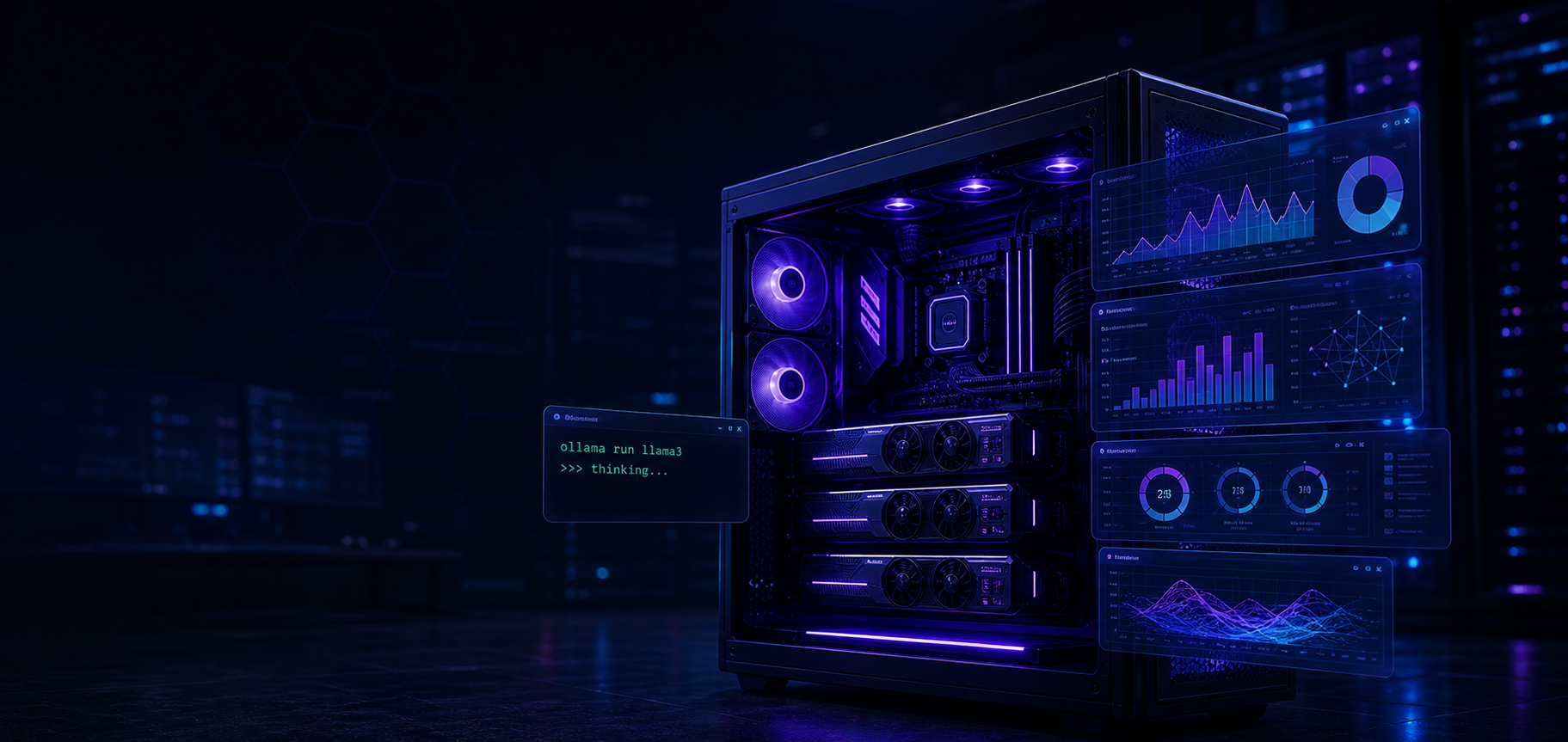
LM Studio is one of the most accessible ways to run local LLMs on a desktop machine. It bundles model downloads, inference, a chat interface, and an OpenAI-compatible API server into one application — no terminal juggling required for basic use.
If you are comparing local runners, read Ollama vs vLLM vs llama.cpp: Choosing a Local Inference Engine first.
Download and install
Head to the LM Studio website and download the version for your operating system. The installer handles model runtime dependencies, so you can go from download to first chat in a few minutes.
LM Studio works on Windows, macOS, and Linux. The Linux build supports GPU acceleration through Vulkan and CUDA depending on your hardware.
Find and download a model
The in-app model browser connects to Hugging Face and lets you search, filter by parameter count and quantisation, and download models directly. Start with a 7B or 8B parameter model in Q4_K_M quantisation — it balances quality and performance on most consumer hardware.
For model recommendations, see Best Local AI Models for Beginners.
Chat interface basics
Once a model loads, you can chat through the built-in interface. LM Studio shows token generation speed, memory usage, and model parameters in real time. The interface supports system prompts, temperature control, context length adjustment, and multi-turn conversations.
Experiment with the preset system prompts or write your own to match specific tasks.
Enable the API server
The most powerful feature is the built-in OpenAI-compatible API server. Enable it from the server tab, choose a port, and any application that speaks the OpenAI API can connect to your local model. This is how you pair LM Studio with:
- Open WebUI or AnythingLLM for a nicer chat interface
- n8n for workflow automation
- Custom scripts and applications that need local inference
The API server runs alongside the chat interface, so you can test prompts in the UI while other tools consume the same model.
Performance tuning
LM Studio exposes GPU offloading controls, thread counts, and context length limits. If responses are slow, increase GPU layers, reduce context length, or switch to a smaller quantisation. Monitor VRAM usage — running near the limit causes swapping and latency.
For hardware guidance, see Best Hardware for Self-Hosted AI.
When to use LM Studio instead of Ollama
LM Studio is strongest on desktop where you want a visual interface and API server in one package. Ollama is stronger for headless servers, scripting, and multi-model workflows. Both run the same underlying models, so the choice is about workflow fit rather than model capability.
Conclusion
LM Studio lowers the barrier to local AI for desktop users. The API server makes it a flexible backend for other tools, and the in-app model browser removes the friction of manual downloads. Start with a small model, enable the API server, and expand from there.
FAQ
Does LM Studio require a GPU?
No, but CPU-only inference is significantly slower. GPU acceleration is recommended for interactive use.
Can LM Studio run multiple models at once?
You can switch models, but running two models simultaneously requires the API server and a second instance.
Is LM Studio free?
Yes, LM Studio is free for local use. It does not require a subscription or cloud account.