Tutorials
How to Deploy Open WebUI and Ollama on a Private LAN with Docker Compose
Run Open WebUI and Ollama on your own LAN with Docker Compose, persistent volumes, a secret key, and practical hardening tips.
How to Deploy Open WebUI and Ollama on a Private LAN with Docker Compose
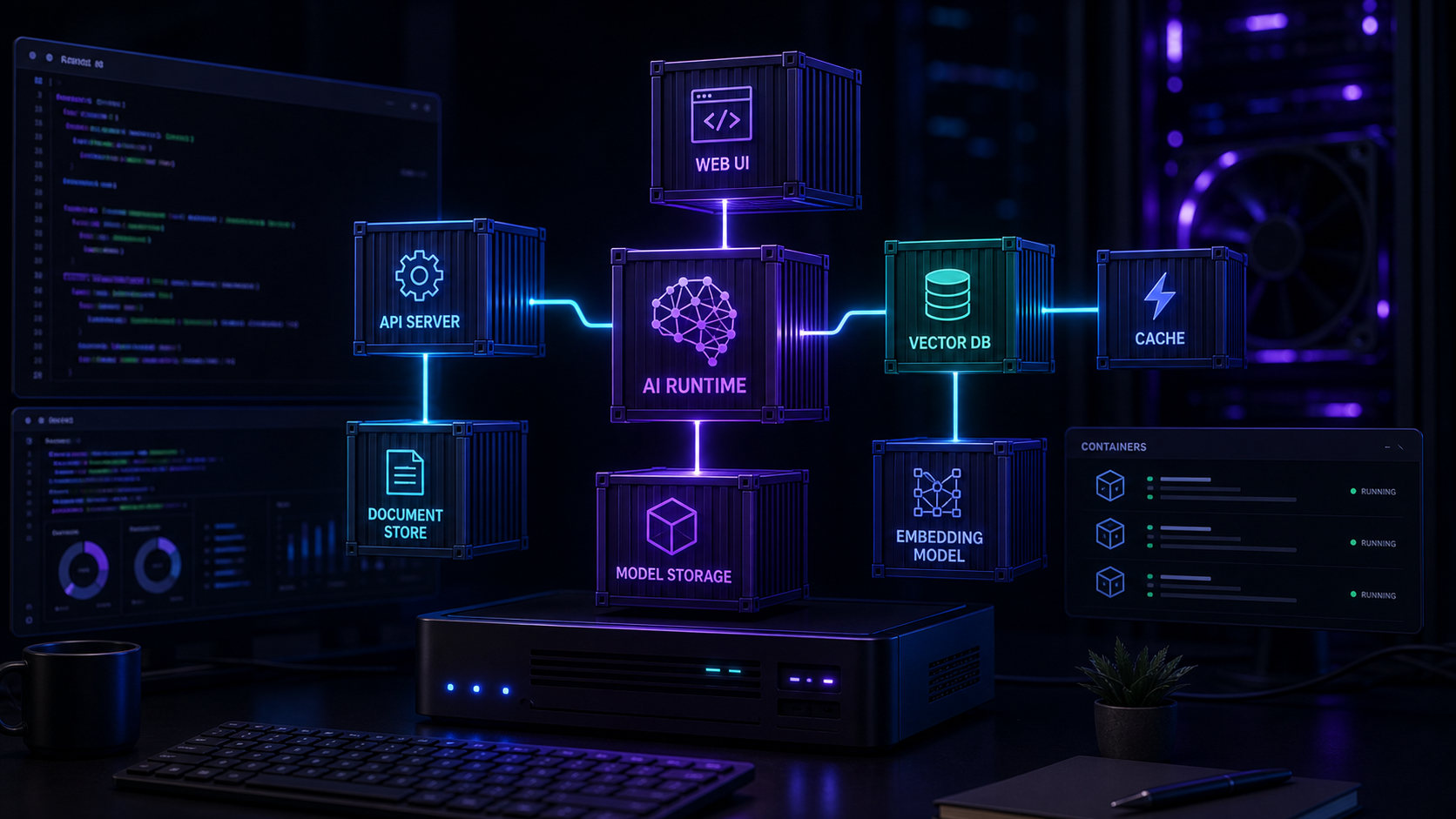
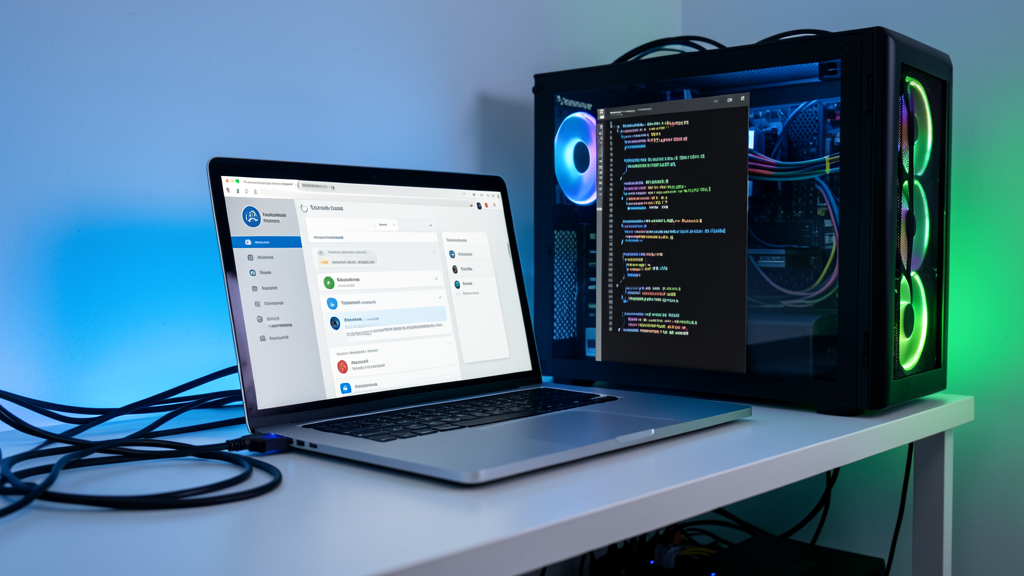
If you want a private ChatGPT-style interface without sending prompts to a cloud provider, Open WebUI plus Ollama is one of the most practical stacks you can run at home or in a small office. Ollama handles model serving, Open WebUI gives you the browser interface, and Docker Compose keeps the whole setup repeatable.
This guide walks through a clean deployment with persistent data, a secret key, and sensible LAN access defaults. If you're still choosing hardware, start with Best Hardware for Self-Hosted AI. If you're new to containerized services, Docker Setup for Local AI Tools is a good companion read.
What this tutorial builds
By the end, you'll have:
- Ollama running as the model backend
- Open WebUI running as the browser interface
- Persistent Docker volumes for models and chat data
- A generated secret key for the UI
- A setup that can stay on a private LAN instead of the public internet
If you plan to host the stack inside a VM or LXC first, Proxmox Setup for AI Workloads is worth reading before you start.
Before you start
You need a machine with Docker Engine and the Compose plugin installed. A basic CPU-only setup works for small models, but more RAM and a GPU will make the experience much better. If you're unsure which model sizes your machine can handle, see Best Local AI Models for Beginners.
Minimum practical requirements:
- 8 GB RAM for tiny models and testing only
- 16 GB RAM for a more comfortable home setup
- 32 GB RAM or more if you want to experiment with larger models or multiple services
- Enough SSD space for model downloads, logs, and chat history
If this server will be visible to other devices, read How to Secure a Self-Hosted AI Server before exposing any ports outside your trusted network.
Step 1: Create a working directory
Keep the stack in its own folder so upgrades and backups stay simple.
```bash
sudo mkdir -p /opt/selfhosted-ai/open-webui
sudo chown -R $USER:$USER /opt/selfhosted-ai/open-webui
cd /opt/selfhosted-ai/open-webui
```
Step 2: Create a secret key
Open WebUI should not run with a predictable secret. Generate one and place it in a local `.env` file.
```bash
openssl rand -hex 32
```
Create a `.env` file next to your Compose file and add the value you generated:
```env
WEBUI_SECRET_KEY=replace-with-your-generated-secret
TZ=UTC
```
Keep this file private. It should not be committed to Git or copied into chat logs.
Step 3: Create the Docker Compose file
This Compose file keeps Ollama on the internal Docker network so you do not have to publish port 11434 to the LAN. Open WebUI is the only service exposed, and even that should be limited with firewall rules or a reverse proxy if you want tighter control.
```yaml
services:
ollama:
image: ollama/ollama:latest
container_name: ollama
restart: unless-stopped
command: serve
environment:
- OLLAMA_HOST=0.0.0.0:11434
- TZ=${TZ}
volumes:
- ollama-data:/root/.ollama
open-webui:
image: ghcr.io/open-webui/open-webui:main
container_name: open-webui
restart: unless-stopped
depends_on:
- ollama
environment:
- OLLAMA_BASE_URL=http://ollama:11434
- WEBUI_SECRET_KEY=${WEBUI_SECRET_KEY}
- TZ=${TZ}
ports:
- "3000:8080"
volumes:
- open-webui-data:/app/backend/data
volumes:
ollama-data:
open-webui-data:
```
Save that as `docker-compose.yml` in the same directory.
If you want LAN-only access
By default, the port mapping above listens on all interfaces. If you want the UI reachable only from a specific machine address, bind it explicitly:
```yaml
ports:
- "192.168.1.50:3000:8080"
```
You can also bind to localhost only while testing:
```yaml
ports:
- "127.0.0.1:3000:8080"
```
Step 4: Start the stack
Bring everything up in the background and check that both containers are healthy.
```bash
docker compose up -d
docker compose ps
docker compose logs -f --tail=100
```
If Ollama starts correctly, you can pull a model from inside the container. For a first test, start with something common and well supported.
```bash
docker compose exec ollama ollama pull llama3.1:8b
docker compose exec ollama ollama list
```
If your machine is smaller, choose a lighter model from the list in Best Local AI Models for Beginners instead of forcing a large one onto weak hardware.
Step 5: Open Open WebUI
Visit the Open WebUI address from a browser on your LAN:
```
http://server-ip:3000
```
On first launch, create the initial account and confirm that the interface can see your Ollama instance. Once you're in, pick the model you pulled and send a simple test prompt such as:
- Summarize this paragraph in three bullets
- Rewrite this email in a friendlier tone
- Explain what this log message means
The best early test is a normal task, not a benchmark. You're looking for a smooth, private workflow you can actually use every day.
Step 6: Tighten access for a private network
The safest pattern is to keep the machine behind your home router, a firewall, or a VPN. If you're only using the UI inside your LAN, allow the port only from trusted subnets.
Example with UFW:
```bash
sudo ufw allow from 192.168.1.0/24 to any port 3000 proto tcp
sudo ufw deny 3000/tcp
```
Do not expose Ollama directly unless you truly need to. Keeping it internal to the Docker network reduces the chance of accidental public access and makes the stack easier to reason about.
If you later want HTTPS and a public hostname, pair this setup with a reverse proxy and the security guidance in How to Secure a Self-Hosted AI Server.
Step 7: Back up the important parts
The two volumes matter most:
- `ollama-data` stores the downloaded models
- `open-webui-data` stores the UI configuration, chat history, and app data
For a simple backup, stop the stack, archive the volumes if they are bind-mounted, or export your Docker volume data according to your host layout. If you're using named volumes, keep regular host-level backups of Docker's storage path and your `.env` file.
A very basic local backup flow looks like this:
```bash
docker compose stop
tar -czf open-webui-backup-$(date +%F).tar.gz .env docker-compose.yml
docker compose start
```
That archive does not capture the contents of named volumes by itself, so treat it as config backup, not a full disaster-recovery strategy.
Troubleshooting
Open WebUI cannot reach Ollama
Check that `OLLAMA_BASE_URL` points to the Docker service name, not to `localhost`.
Good:
```env
OLLAMA_BASE_URL=http://ollama:11434
```
Bad:
```env
OLLAMA_BASE_URL=http://localhost:11434
```
Inside the Open WebUI container, `localhost` means the WebUI container itself, not the Ollama container.
Model downloads are slow or fail
Large models need bandwidth and disk space. If downloads fail repeatedly, check free storage, DNS, and outbound internet access. Try a smaller model first, then scale up later.
The server becomes sluggish
You're probably asking the machine to do too much. Reduce model size, lower concurrency, close other heavy services, or move the stack to better hardware. For planning upgrades, revisit Best Hardware for Self-Hosted AI.
Docker keeps recreating data or losing chats
Make sure the volumes are persistent and that you are not running `docker compose down -v` by accident. The `-v` flag removes volumes and can delete your models and chat data.
The UI works locally but not from another device
Check your firewall rules, router isolation settings, and the port binding in the Compose file. If you used `127.0.0.1:3000:8080`, the service is intentionally local-only.
When to change the stack
This setup is a good starting point, but you can evolve it later:
- Add a reverse proxy when you need TLS and a real hostname
- Move the deployment into Proxmox if you want cleaner isolation
- Switch models depending on task size and hardware limits
- Add automation tools such as n8n when you want repeatable workflows
For the UI choice itself, compare the workflow trade-offs in Open WebUI vs AnythingLLM.
Conclusion
Open WebUI and Ollama make a strong private AI pair when you keep the deployment simple, persistent, and intentionally limited to trusted users. Docker Compose gives you a repeatable setup, named volumes protect your data, and LAN-only access keeps the stack within your control.
Start with one model, verify the basic workflow, then harden access and expand only after the foundation is stable.
FAQ
Should I expose Ollama on port 11434?
Usually no. Keep Ollama on the internal Docker network and expose only what you actually need.
Which model should I pull first?
Start with a widely used general-purpose model such as `llama3.1:8b`, then try smaller or faster options if your hardware struggles.
Can I run Open WebUI and Ollama on Proxmox?
Yes. A VM is often the easiest choice if you want clearer isolation or GPU passthrough. See Proxmox Setup for AI Workloads for planning tips.