Tutorials
Docker Compose for Local AI: Run Ollama, Open WebUI, and AnythingLLM Together
Build a complete self-hosted AI stack with Docker Compose including Ollama, Open WebUI, AnythingLLM, and supporting services for private team AI.
Docker Compose for Local AI: Run Ollama, Open WebUI, and AnythingLLM Together
Running a single local AI tool is straightforward. Running three of them together — plus a shared vector database, reverse proxy, and automation tool — requires a well-designed Docker Compose stack. This guide walks through a complete multi-service setup that covers chat, documents, search, and workflow automation.
If you are new to Docker for AI, read Docker Setup for Local AI Tools for the fundamentals.
The stack architecture
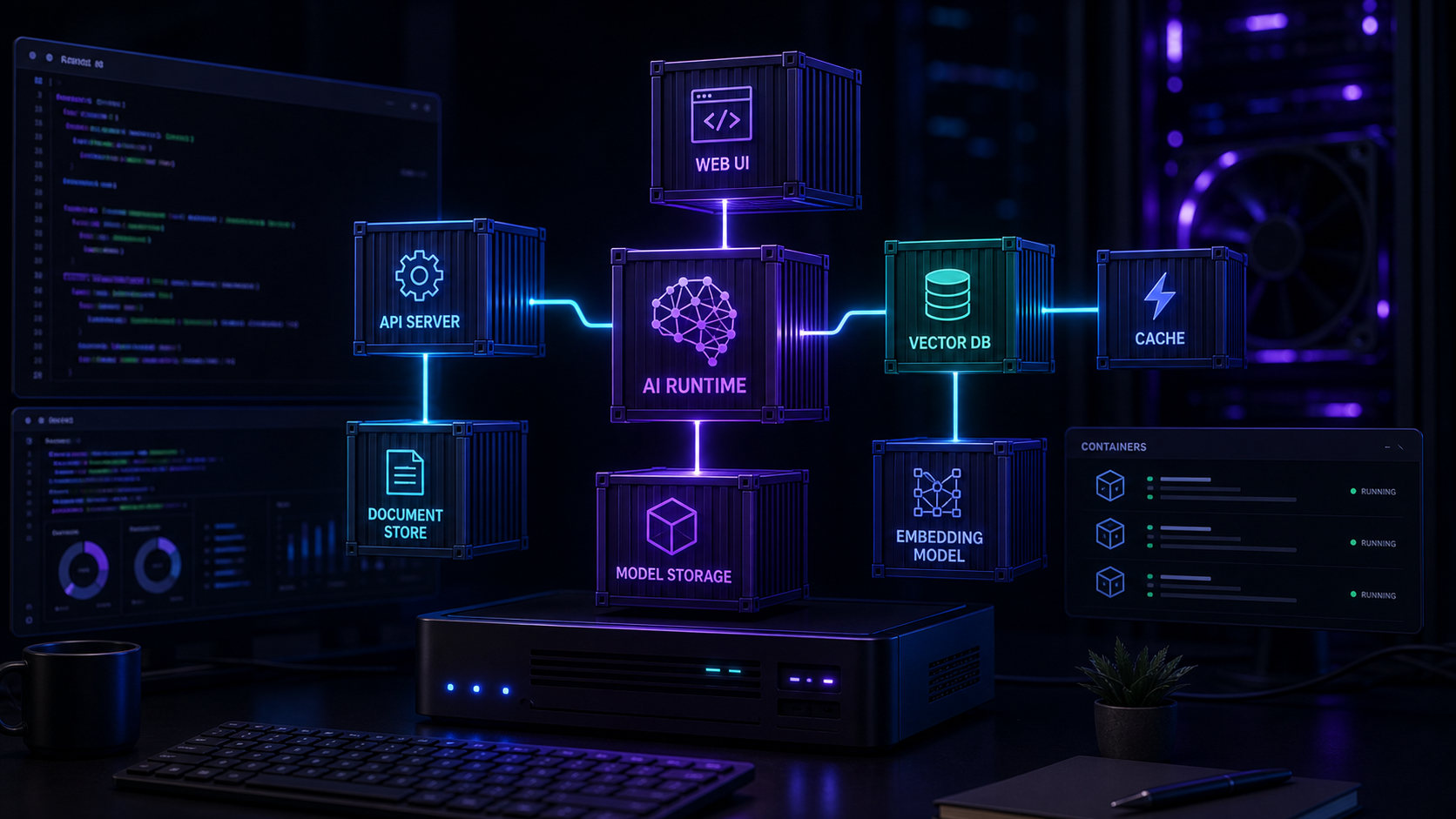
The full stack includes:
- **Ollama** — model runtime for local LLMs
- **Open WebUI** — chat interface with RAG and multi-user support
- **AnythingLLM** — document workspace interface
- **Qdrant** — vector database for shared embeddings
- **n8n** — workflow automation connecting the services
- **Caddy** — reverse proxy with automatic TLS
Each service runs in its own container with persistent volumes for data, models, and configuration.
The Compose file
Create a project directory and a docker-compose.yml that defines each service with explicit networks, volumes, and health checks. Store environment variables in a .env file and never commit secrets.
Key considerations for the Compose file:
- Put Ollama on the same Docker network as Open WebUI and AnythingLLM
- Use named volumes for model storage, vector indexes, and application databases
- Set resource limits per container to prevent one service starving another
- Configure health checks so Caddy routes traffic only to healthy services
GPU passthrough
Ollama needs GPU access for acceptable performance. Add the NVIDIA container toolkit to your Compose file and set Ollama's deploy resources to use the GPU:
```yaml
services:
ollama:
image: ollama/ollama
deploy:
resources:
reservations:
devices:
- driver: nvidia
count: all
capabilities: [gpu]
```
Without GPU passthrough, inference will be slow enough that the stack feels unusable for interactive chat.
For hardware planning, see Best Hardware for Self-Hosted AI.
Shared vector database
Running a shared Qdrant instance lets both Open WebUI and AnythingLLM use the same embedding infrastructure. Configure each application to point at the Qdrant container, and choose one embedding model to keep vector dimensions consistent.
This avoids duplicating index files and simplifies backup — one vector database to protect instead of two.
Reverse proxy and authentication
Caddy in front of the stack handles TLS termination, subdomain routing, and basic authentication. Route open-webui.local to Open WebUI, anythingllm.local to AnythingLLM, and n8n.local to n8n.
For TLS and auth configuration, read Caddy Reverse Proxy for Self-Hosted AI with Automatic TLS.
Backup strategy
Back up the Docker volumes regularly. The critical data includes:
- Ollama model storage (can be re-downloaded but saves bandwidth)
- Open WebUI and AnythingLLM databases
- Qdrant vector index
- Application configuration files
Test your restore procedure at least once. A Compose file is useless without the data volumes it depends on.
Conclusion
A multi-service Docker Compose stack turns several standalone local AI tools into an integrated platform. Start with the minimum viable services — Ollama and one interface — then expand as your workflows demand it. Keep the Compose file in version control and document any manual setup steps.
FAQ
Can I run this stack on a single machine?
Yes. The entire stack runs well on a machine with 32GB RAM, a mid-range GPU, and an SSD for storage.
How much disk space do I need?
Models consume 4–10GB each. The databases and indexes add another few GB. Start with 100GB free.
Is Docker Compose production-ready for local AI?
It is stable for personal and small-team use. For production, add monitoring, log aggregation, and automated backups.