Tutorials
How to Set Up a Local AI Chat Server with Open WebUI and Ollama
Build a private ChatGPT alternative on your own hardware with Open WebUI and Ollama, including Docker deployment, user accounts, and team access.
How to Set Up a Local AI Chat Server with Open WebUI and Ollama
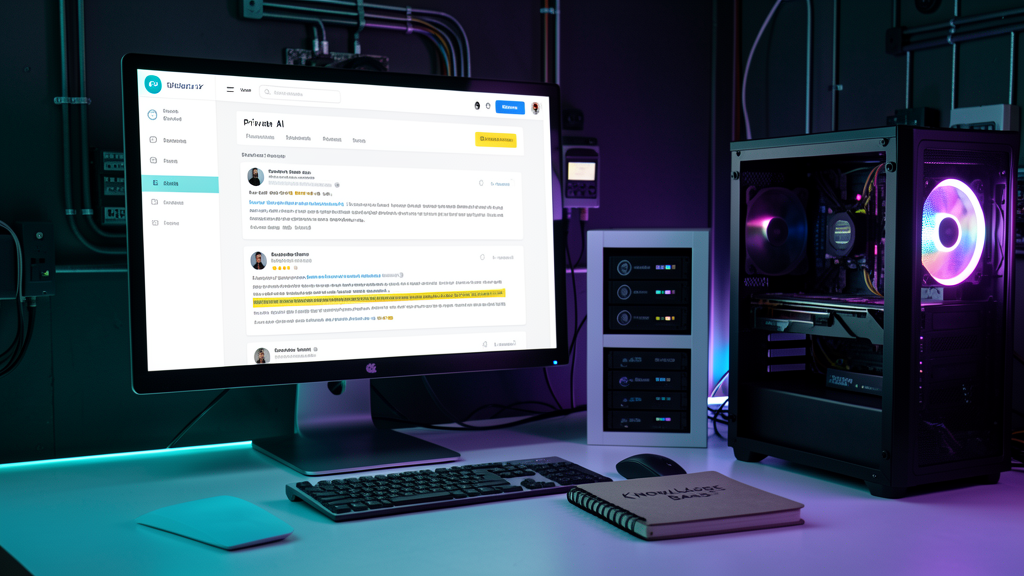
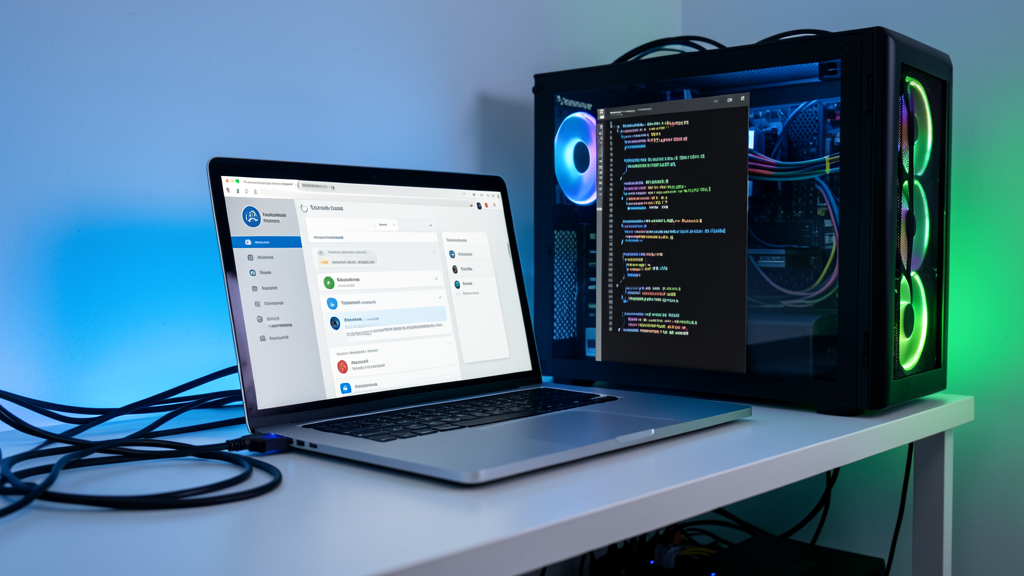
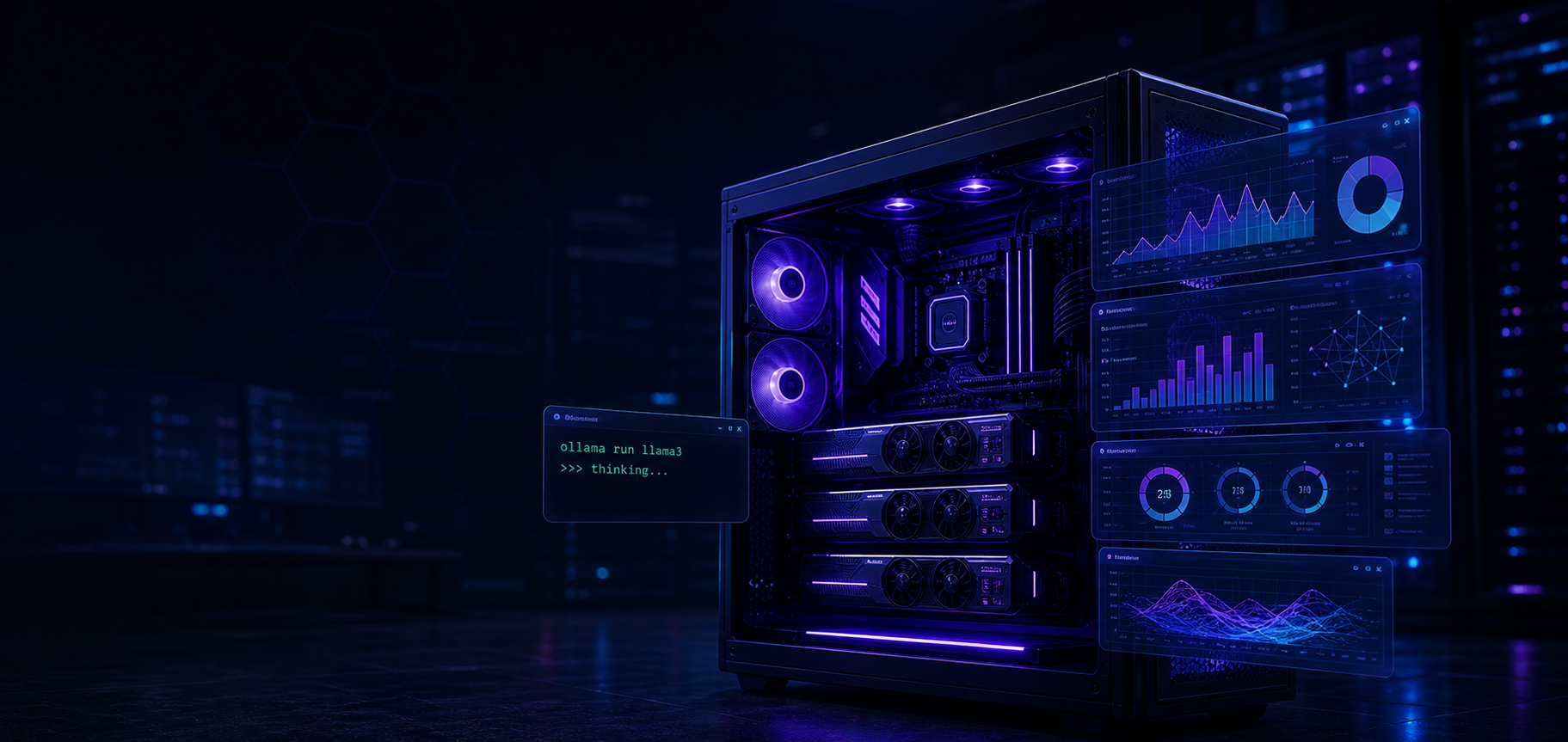
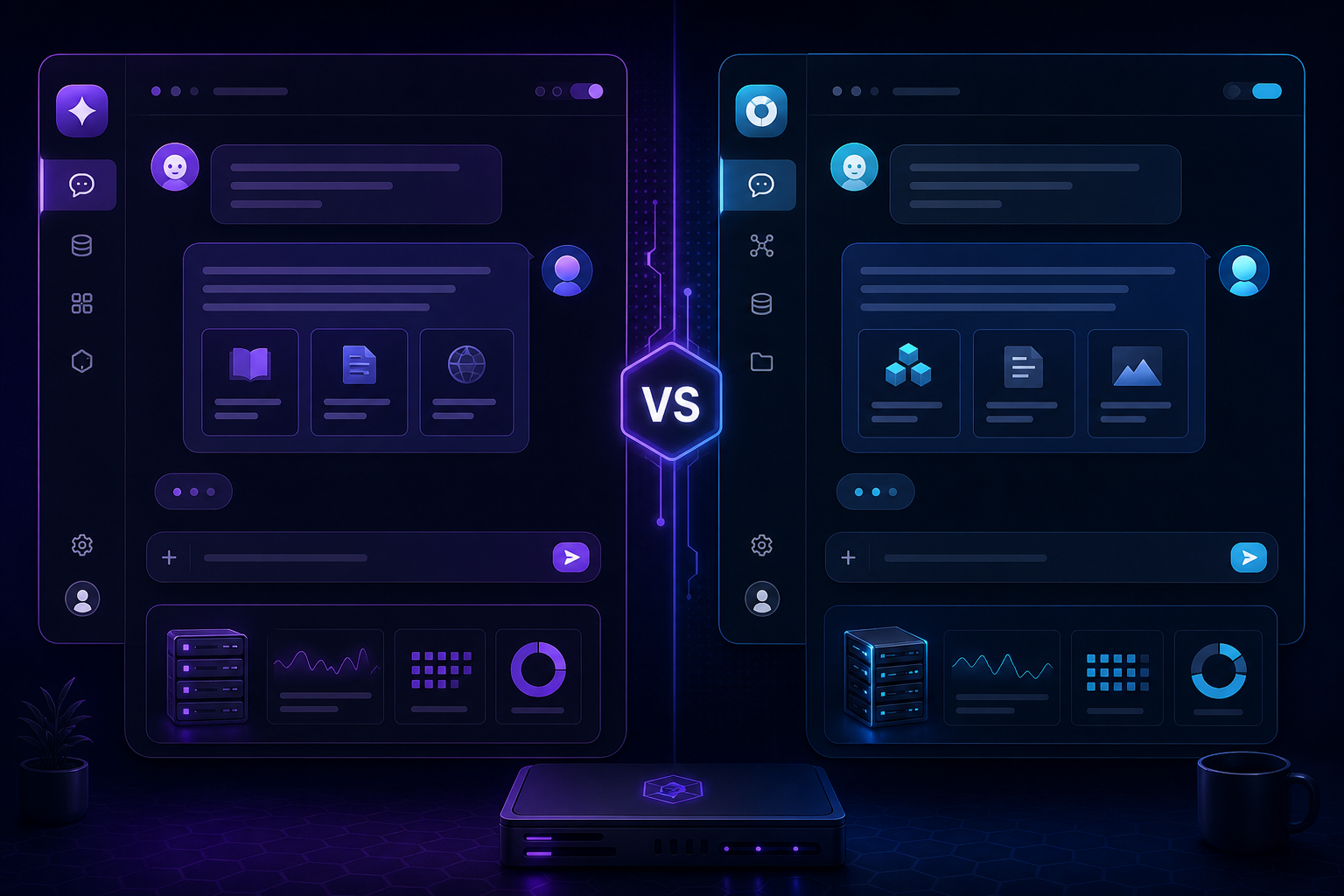
A local AI chat server powered by Open WebUI and Ollama is the closest you can get to a private ChatGPT that runs entirely on your own hardware. This guide walks through the full setup: Docker deployment, model selection, user accounts, and security hardening so you can share the server with a team or family.
For the fundamentals of running models locally, read How to Run Llama 3 Locally with Ollama.
What you need
- A machine running Linux (or Windows with WSL2) with at least 16GB RAM
- A GPU with 8GB+ VRAM for acceptable interactive speed
- Docker and Docker Compose installed
- 50GB free disk space for models and data
For hardware sizing, see Best Hardware for Self-Hosted AI.
Docker Compose setup
Create a project directory and a docker-compose.yml with the ollama and open-webui services. Connect them to the same Docker network so Open WebUI can reach Ollama by service name.
Use named volumes for model storage and application data so upgrades do not delete your state. Set restart policies so the services survive host reboots.
First launch
Start the stack with `docker compose up -d`. Open WebUI will be available at http://localhost:3000. The first-run wizard guides you through creating an admin account.
After signing in, go to the admin settings and configure your Ollama connection. Open WebUI auto-discovers Ollama if they share a Docker network.
Pull and select models
From the Open WebUI admin panel, you can pull models through Ollama. Start with a model appropriate for your hardware — a 7B or 8B parameter model is a good starting point for most systems.
Browse models, check their sizes, and pull the ones you want. Open WebUI lets users switch between available models in the chat interface.
Enable document RAG
Open WebUI's document upload feature works out of the box after you configure an embedding model. Set one in the admin settings under Documents. The embedding model converts uploaded files into vector representations that the chat model can search.
For advanced RAG configuration, see Build a Local RAG Pipeline That Actually Answers Questions.
User management
Enable registration in the admin settings to let team members create accounts. Open WebUI supports role-based permissions: admins control model access and system settings, while regular users chat and upload documents.
Set up user limits if your hardware cannot support many concurrent sessions. Monitor GPU memory usage to catch resource contention early.
Security hardening
Before exposing the server beyond your local network:
- Change the default admin password
- Enable HTTPS through a reverse proxy
- Set up regular backups of the application database
- Keep Ollama and Open WebUI updated
For TLS and authentication, read Caddy Reverse Proxy for Self-Hosted AI with Automatic TLS.
Conclusion
An Open WebUI and Ollama stack is the most approachable way to run a private AI chat server for multiple users. The setup takes under an hour, and the result is a usable chat interface backed by models that run entirely on your hardware.
FAQ
Can I access the server from my phone?
Yes. Open WebUI has a responsive web interface that works on mobile browsers.
How many users can use it at once?
This depends on your GPU memory. A 7B model at 4-bit quantisation leaves room for 2–3 concurrent users with good response times.
Do I need internet access to use it?
After the initial model download, everything runs locally. No internet connection is required for inference.