Tutorials
How to Run text-generation-webui with Docker and GPU Acceleration
Deploy text-generation-webui in Docker with GPU passthrough, model management, API access, and persistent storage.
How to Run text-generation-webui with Docker and GPU Acceleration
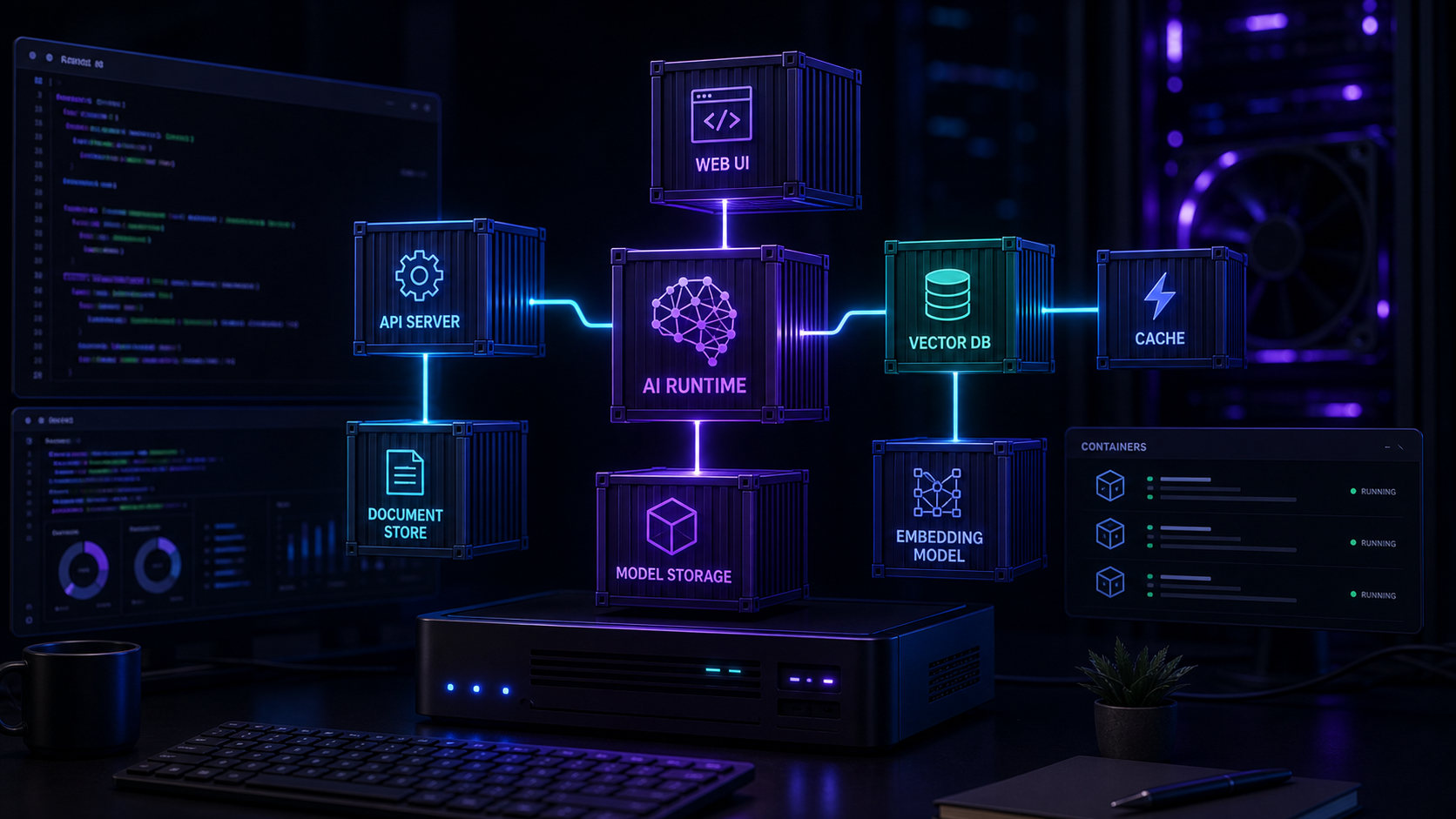
text-generation-webui, also known as oobabooga, is one of the most capable local LLM interfaces available. Deploying it inside Docker gives you clean isolation, repeatable setup, and straightforward GPU acceleration without polluting your host environment.
Prerequisites
You need Docker and the NVIDIA Container Toolkit installed on the host. Verify GPU access with `docker run --rm --gpus all nvidia/cuda:12.2-base nvidia-smi` before proceeding. If the GPU is not visible inside a container, text-generation-webui will fall back to CPU inference, which is significantly slower.
For a general Docker primer, read Docker Setup for Local AI Tools.
Compose file structure
Create a project directory with a `docker-compose.yml`, an `.env` file, and a models volume. The Compose file should set the GPU device access, mount a persistent models directory, and expose the web and API ports.
Key configuration choices
Mapping the `/workspace/models` directory to a host volume means model downloads persist across container restarts. This is important because re-downloading a 7B model from Hugging Face is time-consuming and bandwidth-intensive.
Configure API mode
text-generation-webui can run in an API-only mode without loading the web interface. This reduces memory usage and is ideal for setups where the UI is handled separately by Open WebUI or another front end.
For interface comparison, see Open WebUI vs AnythingLLM.
Enable streaming
Streaming is essential for a responsive chat experience. Add the streaming flag to the launch command so tokens appear as they are generated rather than all at once.
Model management inside Docker
Place model files in the mounted volume and text-generation-webui will detect them on startup. Use Hugging Face model IDs or download them manually. Organise models by backend type (Transformers, ExLlamaV2, GPTQ) so the server knows which loader to use.
Common pitfalls
Out of memory errors
If the container stops with a memory error, reduce the model size, use a quantised variant, or enable CPU offloading. Docker memory limits can also prevent the model from loading if set too low.
Permission issues
Ensure the Docker user inside the container has write access to the models directory. On Linux hosts, `chown` the volume directory to the container's UID or use an `.env` file to set the user mapping.
For broader stack monitoring, see Monitor Self-Hosted AI Services with Uptime, Logs, and Metrics.
Conclusion
Running text-generation-webui in Docker with GPU acceleration gives you a reliable, isolated local LLM server. The initial setup cost pays off in repeatable deployments, easier updates, and cleaner separation from the host system.
FAQ
Does text-generation-webui support multi-GPU in Docker?
Yes, with the NVIDIA Container Toolkit and appropriate Docker GPU device configuration.
Can I run text-generation-webui without a GPU?
Yes, but CPU-only inference is much slower and works best for small models with heavy quantization.
How do I update text-generation-webui in Docker?
Rebuild the image from the latest source or use a tagged version. Model files in the mounted volume are unaffected by the rebuild.